
Short guide
Working with Wordminds AI Hub is designed to be seamless. Follow these simple steps to translate your document using the most suitable AI engine or to request a professional human review:
- Select your Source and Target languages.
- Upload your document.
- Hit Translate for quick results.
- Request a Quote if you require a human expert review.
Note: During the Beta testing phase, the AI Hub has specific limitations regarding volume, supported languages, and file formats. The full live implementation will offer expanded capabilities (see the detailed specifications below).
Please refer to a more detailed guide below.
Quick Start Guide: AI Hub Translation
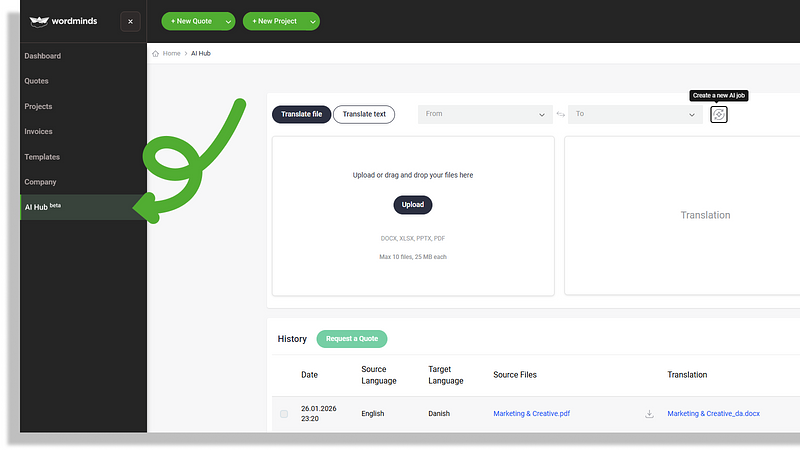
Step 1: Find AI Hub
Go to the AI Hub tab on the Customer Portal: click the AI Hub link on the left-hand menu.
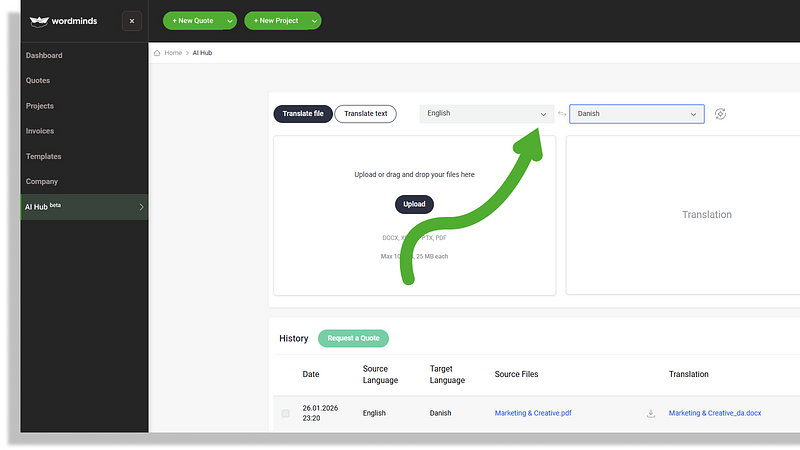
Step 2: Select languages
Set Your Languages: select your Source and Target languages from the dropdown menus at the top
Available languages during beta testing: [Arabic, Danish, Dutch, English (US, UK, CA), Finnish, French, French CA, German, Greek, Italian, Japanese, Korean, Lithuanian, Polish, Portuguese, Portuguese BR, Romanian, Russian, Spanish, Spanish US, Vietnamese].
*Up to 60 languages to be added later.
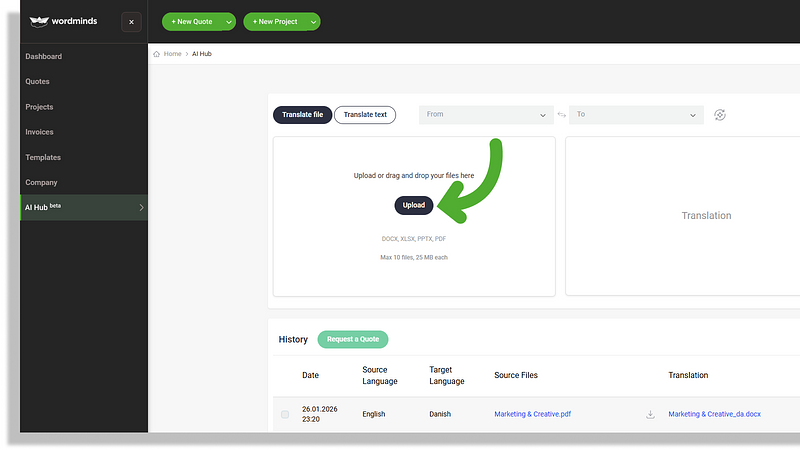
Step 3: Upload documents
Upload Documents: Drag and drop your files into the upload area or click Upload.
Accepted file formats during beta testing: DOCX, XLSX, PPTX, or PDF.
*Up to 50 file formats to be added later.
Volume limits during beta testing: You can upload up to 10 in bulk (25 MB). Monthly limit - up to 1,000,000 characters or ~200,000 words.
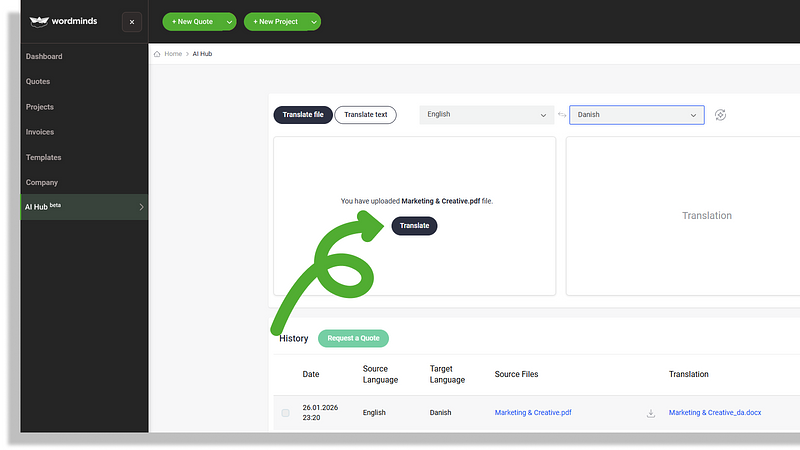
Step 4: Translate
Translate: Click the Translate button. The system will automatically analyse your content and select the optimal AI engine for the job.
Expected turnaround time: seconds to minutes
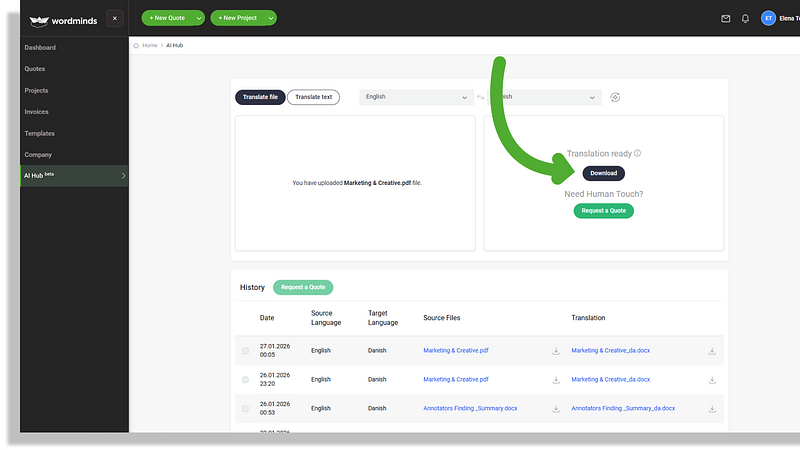
Step 5: Download
Download the file: click the Download button in the right-hand box.
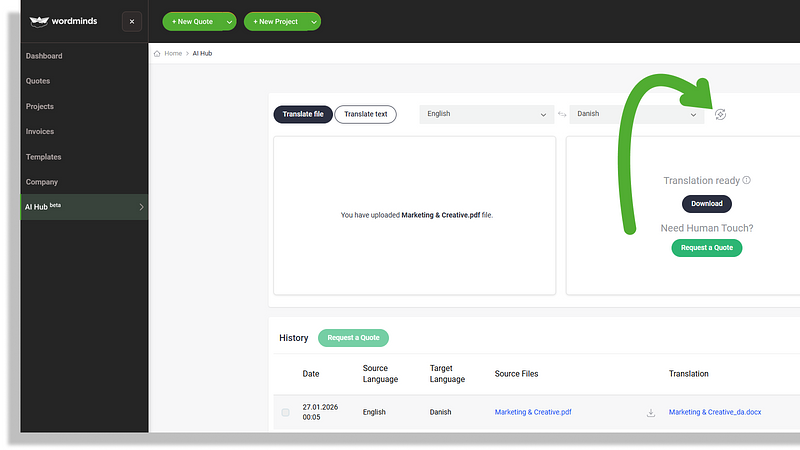
Step 6: Manage jobs
Manage Jobs: Your translated files will appear in the History section below. To start a new translation with a different language pair, simply click "Create a new AI job."
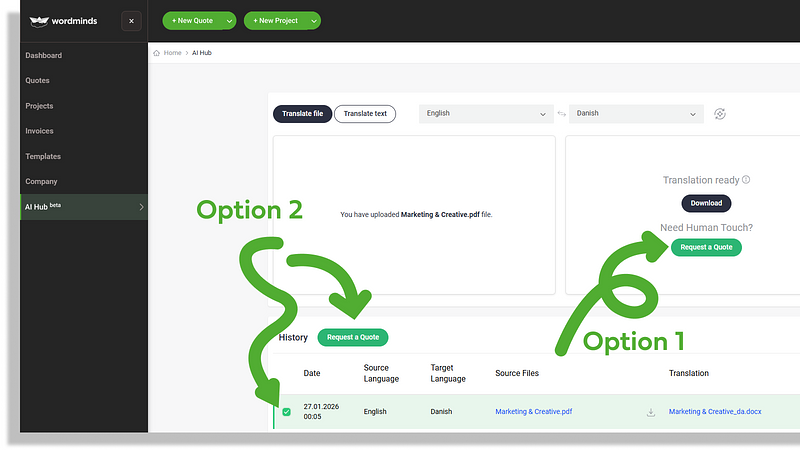
Step 7: Human review (optional)
Request Professional Human Review (optional): if the translation requires improvements, request a quote from your AM for a Human Review
- Option 1. Click the button under Download
- Option 2. If you navigated away, or need Human Review for a previously translated job - tick the box next to the job and hit "Request a Quote"
Requesting Professional Human Review (MTPE)
If your content requires expert human review for accuracy, tone, and cultural nuance, you can request Machine Translation Post-Editing (MTPE) directly in the AI Hub.
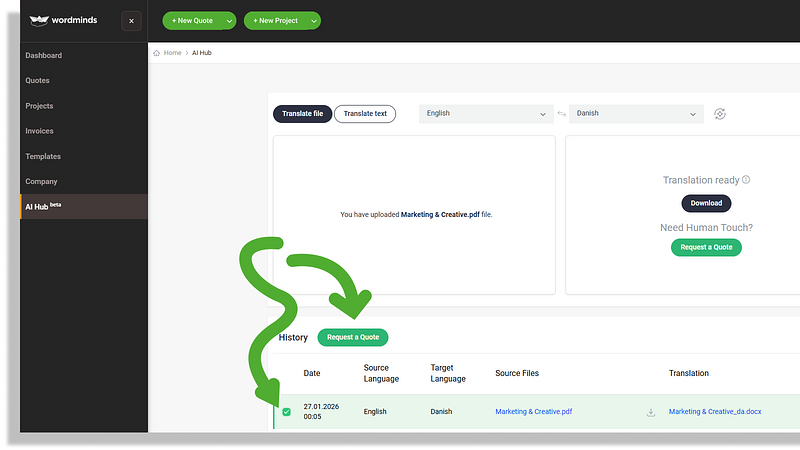
Step 1: Initiate the Request
In your History table, select the checkbox next to the AI job you want reviewed and click the green Request a Quote button.
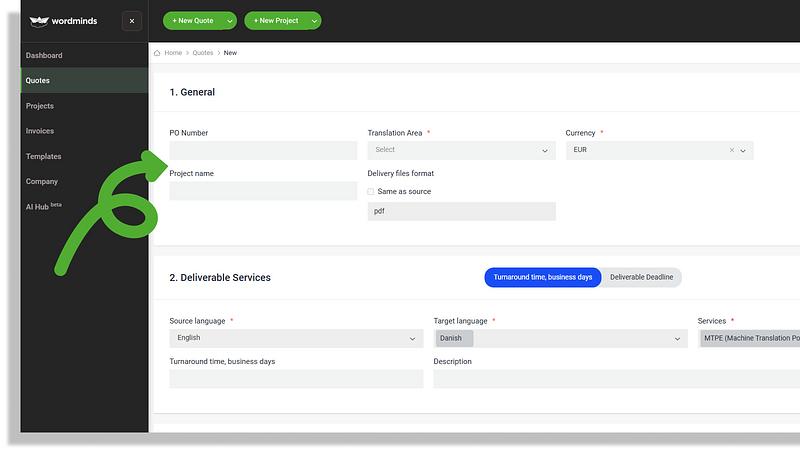
Step 2: Project Details
Fill in the General information:
- PO Number or Project name: Enter your internal purchase order or the Project Name to easily find it later.
- Translation Area: Select the industry or topic that best fits your content.
- Currency: This defaults to your account’s primary currency.
- Delivery File Format: Specify how you want the final file (e.g., ".docx", "Same as source", or "MS Word").
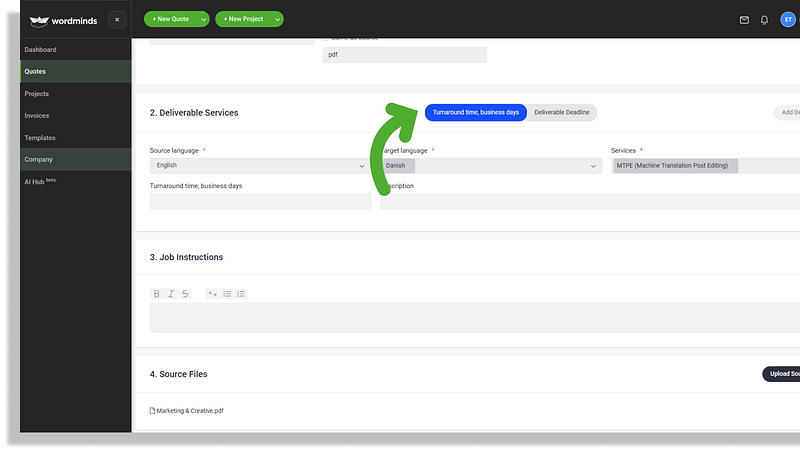
Step 3: Define Your Timeline
Choose how you want to set your deadline: (Optional)
- Turnaround time: Specify the number of business days for delivery
- Deliverable Deadline: Select a specific date.
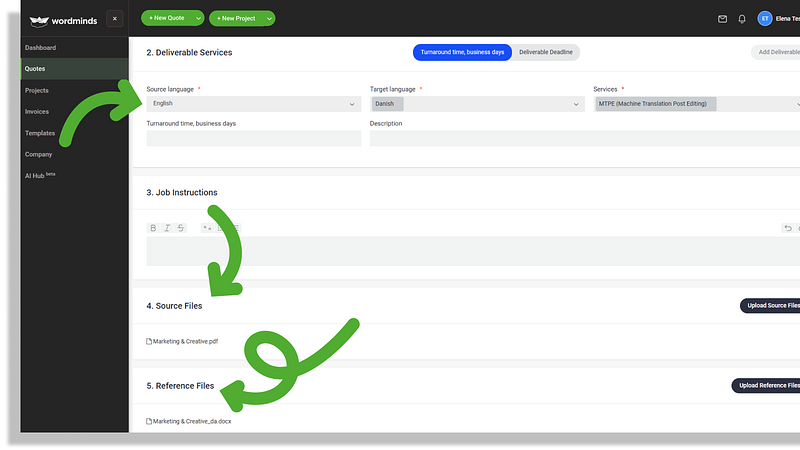
Step 4: Instructions & Files
- Service: Defaults to MTPE. Additional services will be added here soon.
- Description & Instructions: Provide context for the linguists (e.g., "Maintain a formal tone," or "Follow the attached termbase").
- Files: Your Source and AI-translated Reference files are automatically attached from your AI Hub history. You can add additional reference files, like Termbase, Guides etc.
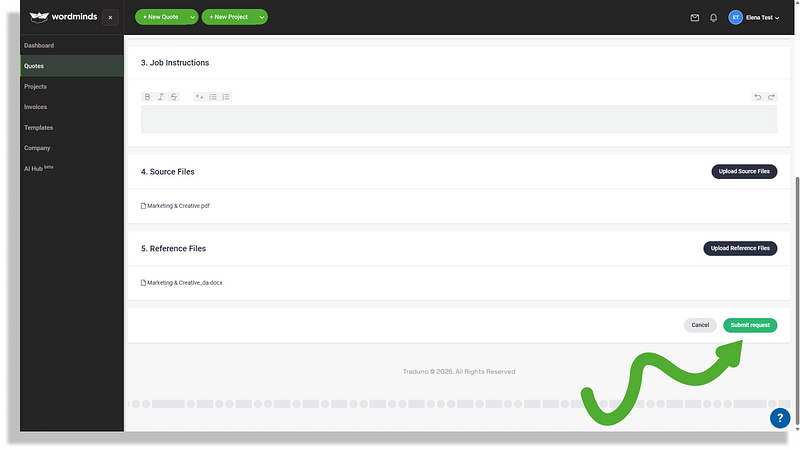
Step 5: Submit & Approve
- Click Submit Request. Your Account Manager will review the details and provide a cost estimation shortly.
- Review the Quote: Once estimated, you can:
- Approve: The MTPE project goes immediately to Production.
- Reject: The MTPE request will be cancelled.